
If you set up a transfer (whether it's a one-time transfer, or one that reoccurs), and then realize you need to cancel it, here's the info you need to know:
- Transfers can only be canceled in advance of the transfer date set.
- If you cancel a recurring transfer, all recurring transfers in that series will be canceled.
Editing a Recurring transfer
Only transfers to a checking/savings can be edited at this time. If you need to make a change to a loan/credit card recurring transfer then you will need to cancel the existing transfer and set it up again with the desired changes.
- Login to online banking.
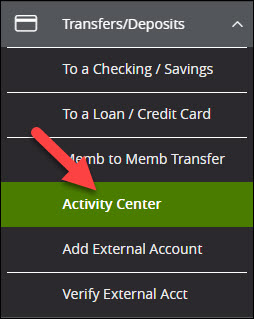
- In the left menu, select Activity Center under the Transfers/Deposits heading.
- Under the Recurring Transactions tab you will see a list of your transactions. Click on the Actions button to the right of the transaction you wish to edit.
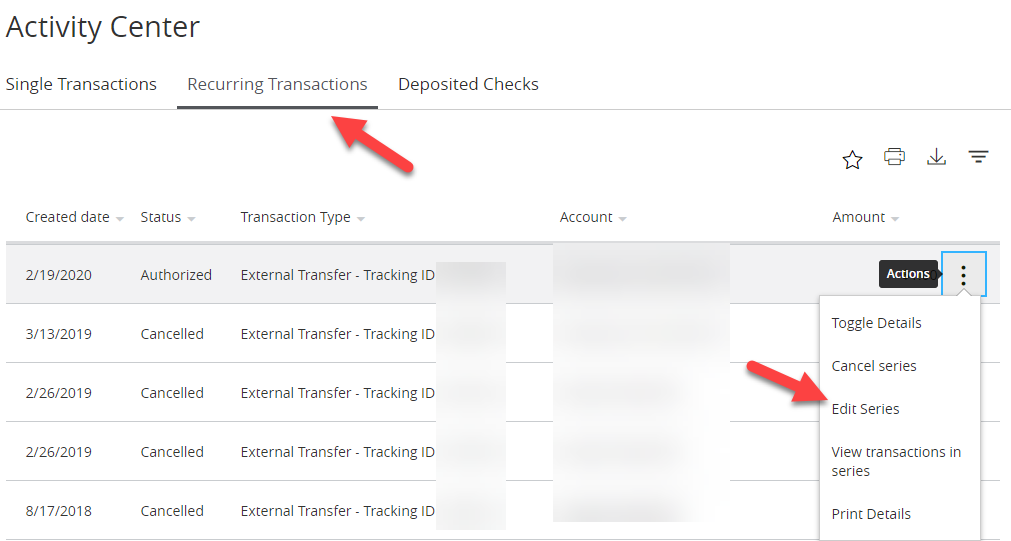
- From the Actions menu select Edit Series.
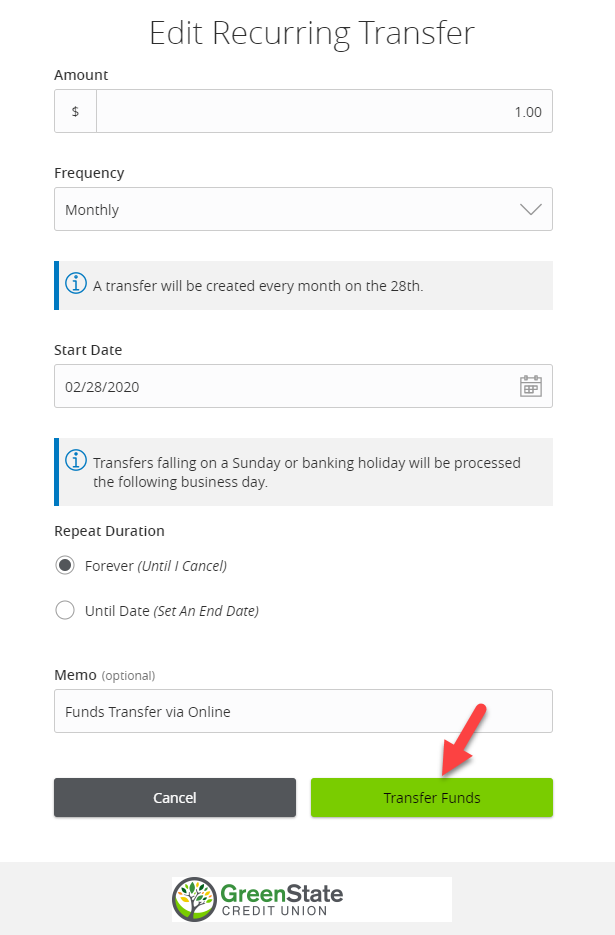
- A new menu will pop up. There you can make the necessary edits then scroll the the bottom and select Transfer Funds.
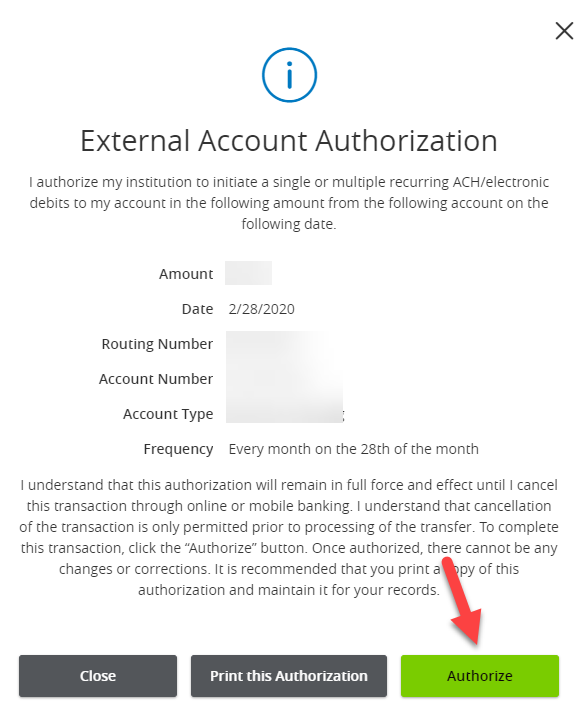
- You will then need to confirm the changes by selecting Authorize.
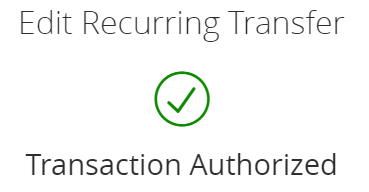
- Once the changes are submitted and approved you will see a Transaction Authorized notice.
Cancelling a single transfer
- Login to online banking.
- In the left menu, select Activity Center under the Transfers/Deposits heading.
- Under the Single Transactions tab you will see a list of your transactions. Click on the Actions button to the right of the transaction you wish to cancel.
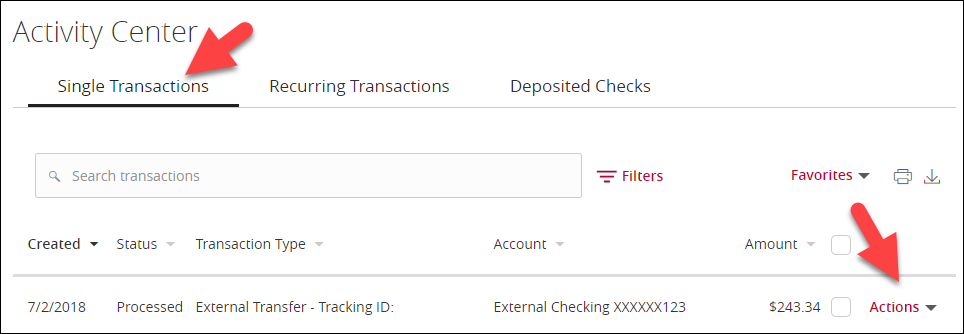
- From the Actions menu select Cancel.
- If you don't see the option to edit or delete the transfer, it has already begun processing and we're not able to cancel it.
- You will now be asked to confirm the cancelation. Click Confirm.
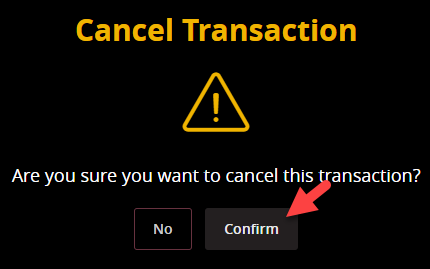
- The transaction is now successfully canceled.
Cancelling a recurring transfer
- Login to online banking.
- In the left menu, select Activity Center under the Transfers/Deposits heading.
- Under the Recurring Transactions tab you will see a list of your transactions. Click on the Actions button to the right of the transaction you wish to cancel.
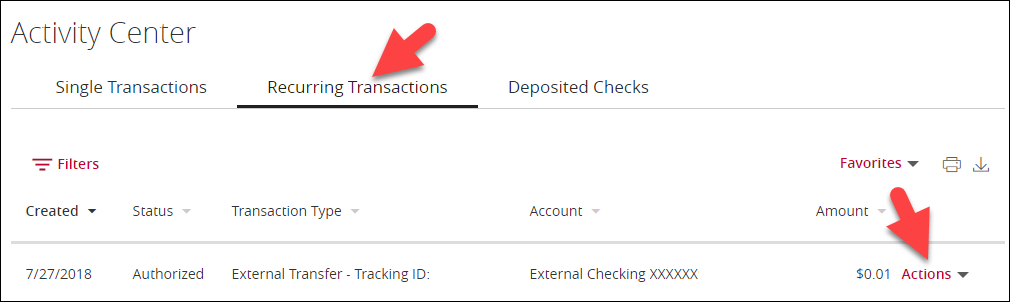
- From the Actions menu select Cancel.
- If you don't see the option to edit or delete the transfer, it has already begun processing and we're not able to cancel it.
- You will now be asked to confirm the cancelation. Click Confirm.
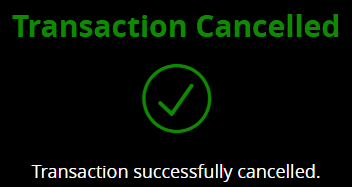
- The recurring transaction is now successfully canceled.
Pages within