
You can use the Transfer/Deposits menu in online banking to transfer money from a GreenState deposit account to another GreenState account. You can transfer funds to a checking/savings accounts or to a loan/credit card. (example: Transfer from checking to savings, or from a checking to a loan)
You can use the To a Loan / Credit Card option to make one-time loan payments or schedule recurring payments to automatically pay your loan based on your custom settings.
To a Checking/Savings
- Login to online banking. See Enroll in Online Banking if you have not enrolled Online Banking.
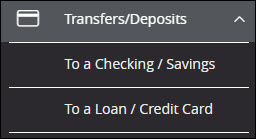
- In the left menu, select To a Checking / Savings under the Transfers/Deposits heading.
- Set up the transfer.
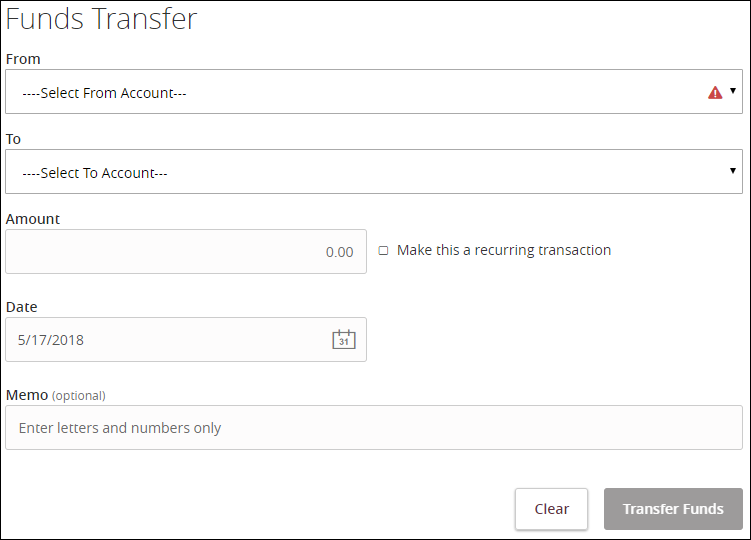
- Select the Make this a recurring transaction box if you'd like to setup an automatic payment/transfer.

- Note: If you are making a loan payment from a GreenState account, you can check the box that says Repeat Forever and the recurring transfer will end once the loan is paid in full. If you are paying from an external account you should set an end date or cancel the series to end the recurring payments when the loan is paid.
- Select the Make this a recurring transaction box if you'd like to setup an automatic payment/transfer.
- Click Transfer Funds to complete.
To a Loan/Credit Card
- Login to online banking. See Enroll in Online Banking if you have not enrolled Online Banking.
- In the left menu, select To a Loan / Credit Card under the Transfers/Deposits heading.
- Set up the Loan Payment.
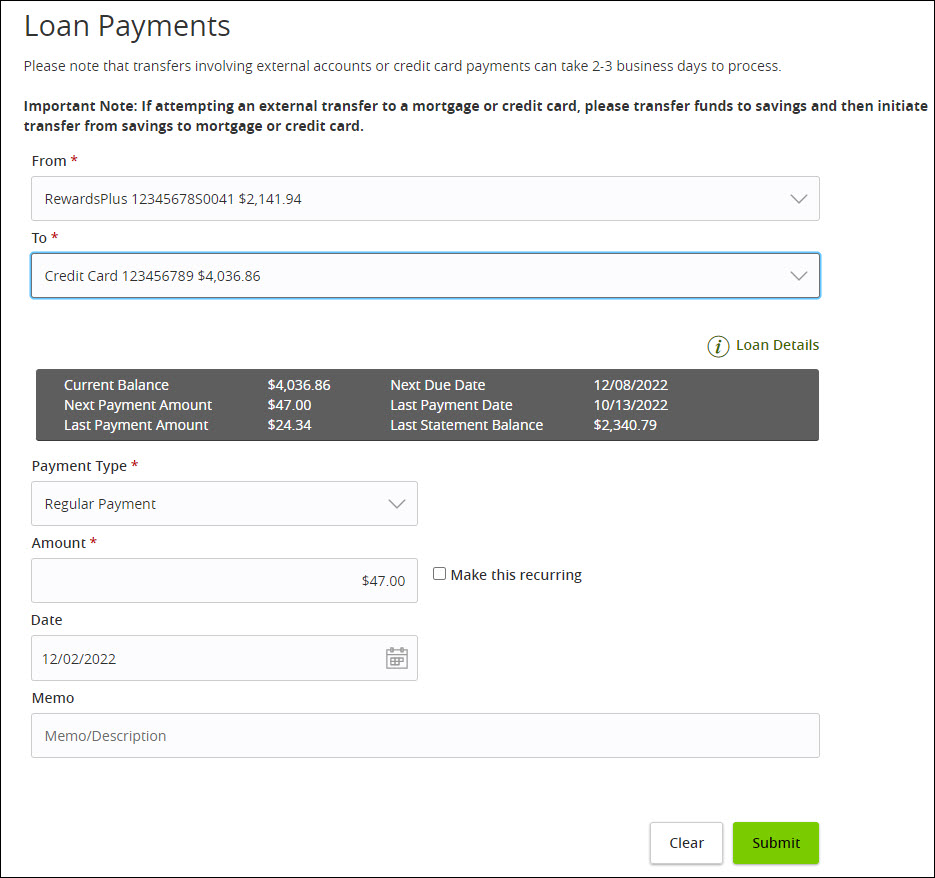
- Select the Make this a recurring transaction box if you'd like to setup an automatic payment/transfer.
- Note: If you are making a loan payment from a GreenState account, you can check the box that says Repeat Forever and the recurring transfer will end once the loan is paid in full. If you are paying from an external account you should set an end date or cancel the series to end the recurring payments when the loan is paid.
- Select the Make this a recurring transaction box if you'd like to setup an automatic payment/transfer.
- Click Submit to complete.
Cancel a Recurring Transaction
- You can cancel recurring transfers that you've set up in online banking at any time.
- In the online banking main navigation menu, click on Transfers/Deposits and select the Activity Center option.
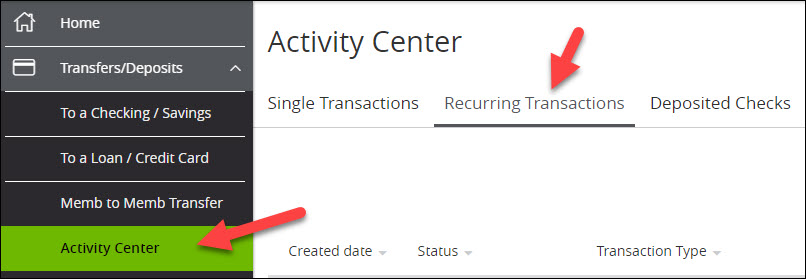
- Select Recurring Transactions tab from the top three options in the Activity Center.
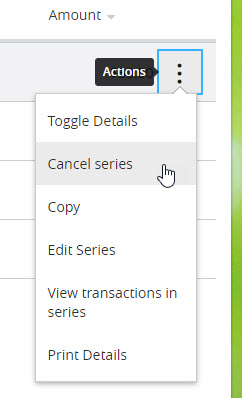
- Click the Actions link next to the transaction you wish to alter and choose the Cancel Series option.
- Click Confirm in the popup window to cancel the recurring transaction.
Pages within