
Push Notifications
Enabling Push Notifications
The first time you log into the mobile app you will be prompted to turn on push notifications.
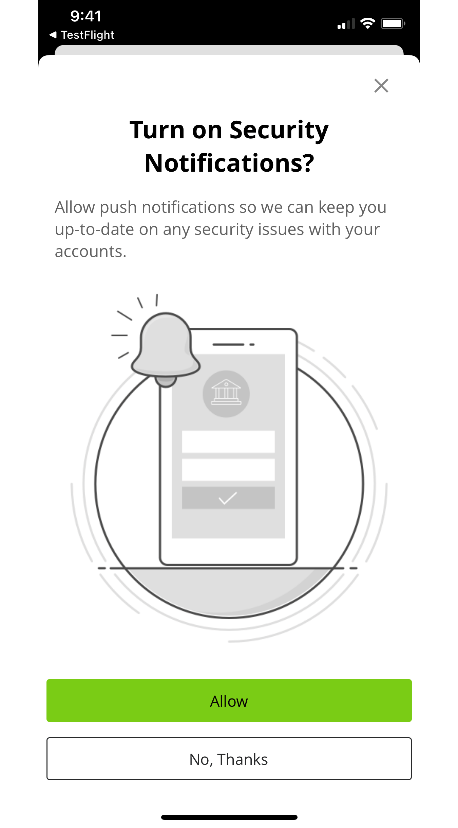
- "Allow” registers the device and enables push for alerts
- “No, Thanks” dismisses the page; nothing is registered
- If the you select “No, Thanks”, you can always enable push from the Push Notifications page under Settings
- If you ever delete and re-installs the app, you will be presented with this page again
When Push Notifications is enabled, you will need to re-configure the delivery method for any existing alerts to Push Notifications.
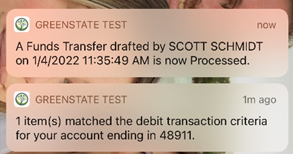
Example of Push Notification
Frequently Asked Questions
Q: Can two people sign up for Push Notifications on the same device?
A: No. Only one user can enroll in Push Notifications per app / device combo. If a different user logs in on the SAME app on the SAME device and attempts to enable push notifications, they will receive a “Push Notifications Disabled” message.
Q: How do I disable Push Notifications?
A: You can disable Push Notifications by visiting the Push Notifications option under Settings. Simply move the toggle to off and it will disable all Push Notifications
Q: Are Push Notifications supported on desktop?
A: No, Push Notifications are only supported on Android and iOS mobile devices
Q: Is there a charge or fee for Push Notifications?
A: No, there is no charge or fee for Push Notifications.
Q: Does a Push Notification count as an SMS message?
A: No, Push Notifications do not count as SMS messages.
Setting a new Activity Alert
- Login to online banking or the mobile app.
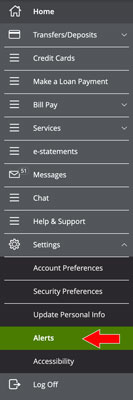
- Navigate to Settings > Alerts
- Choose the + New Alert > History Alert option.
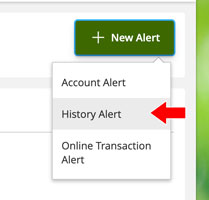
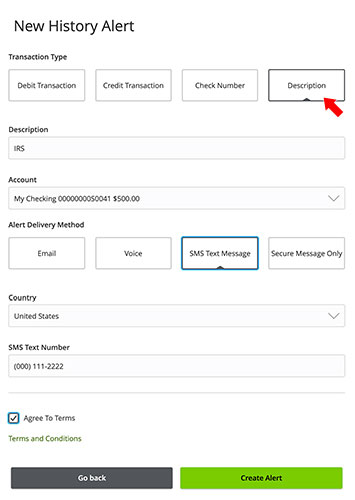
- To set an alert for a transaction based on the transaction's description:
- Select the Description option.
- Enter a term to check for.
- Select an account to check for the transaction.
- Select an alert delivery method and enter the alert's destination.
- Click the Create Alert button to turn on the alert.
- Manage the alert from the Alerts page under History Alerts.
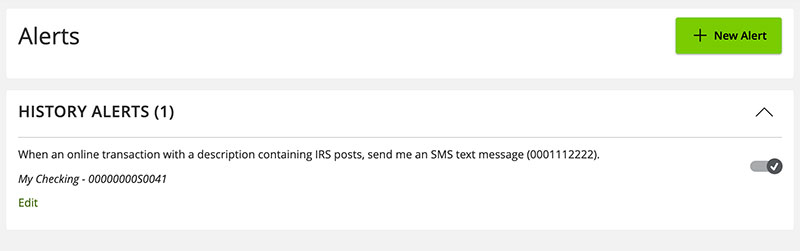
Note: Alerts are sent via the selected delivery method as soon as a transaction occurs that matches your alert criteria. Some transactions like ACH payments or recurring bill payments may occur at odd hours early in the morning.
If you're setting an SMS alert for transactions that occur as ACH payments (also referred to as direct deposits), you'll likely receive the alert text messages early in the morning when the transactions post.